In today’s digital age, smartphones have become an inseparable part of our daily lives. Whether it’s for social media, gaming, productivity, or entertainment, we often spend hours on our Android devices without realizing the actual time. This is where how to check screen time on Android becomes an important question. Tracking your screen time not only helps you become aware of your digital habits but also allows you to make healthier choices when it comes to smartphone usage.
everything you need to know about how to check screen time on Android, different methods available, the importance of screen time tracking, and some useful tips to control excessive usage.
Method 1: Using Digital Wellbeing (Built-in Feature on Android)
Most modern Android phones come with a built-in feature called Digital Wellbeing. It’s the simplest and most reliable way to learn how to check screen time on Android.
Steps:
- Open the Settings app on your Android device.
- Scroll down and tap on Digital Wellbeing & Parental Controls.
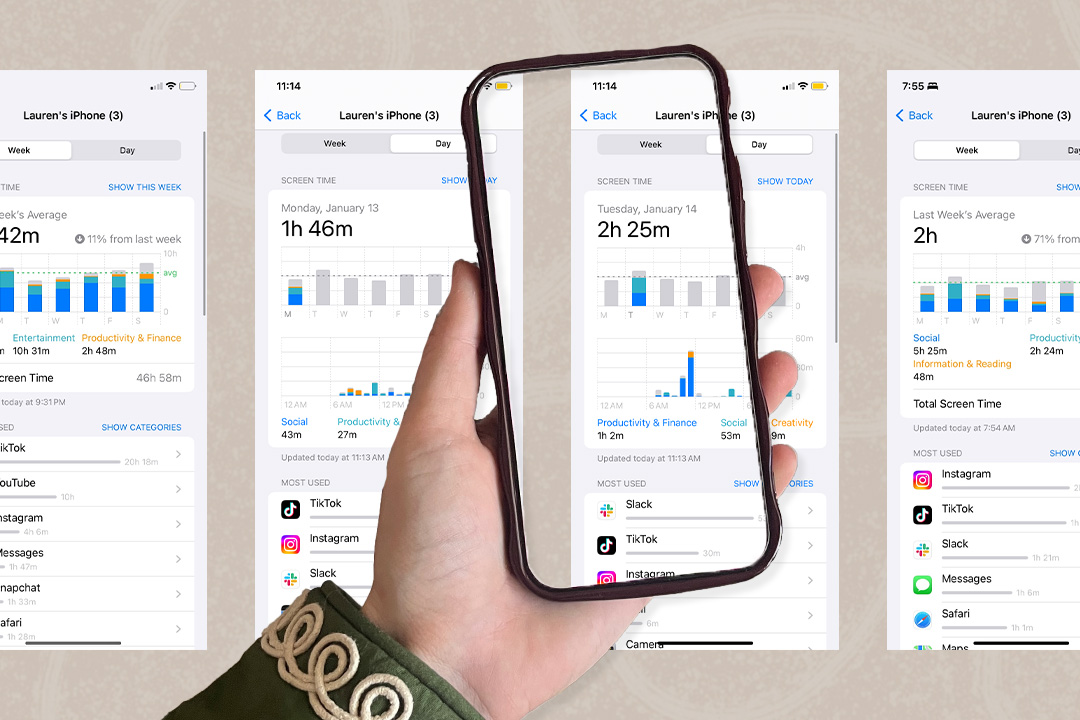
- You will see a dashboard showing your daily screen time, including:
- Total hours spent on the phone
- Most used apps
- Number of unlocks
- Notifications received
- Tap on the Dashboard to get a detailed breakdown.
This method is the default option provided by Google, and it works across most Android devices.
Method 2: How to Check Screen Time on Android via Battery Usage
Not every phone has Digital Wellbeing installed, especially older devices. In such cases, you can learn how to check screen time on Android using the battery usage feature.
Steps:
- Go to Settings on your device.
- Tap on Battery or Battery Usage.
- You will find an option that shows Screen Usage Time or Screen on Time.
- This tells you how long your phone’s screen has been active.
While this method doesn’t give app-by-app details, it still helps you figure out how to check screen time on Android in a quick way.
Method 3: How to Check Screen Time on Android Using Third-Party Apps
If you want more advanced features, you can install third-party apps. These apps offer detailed analytics, daily/weekly reports, and even reminders. Some of the best apps for how to check screen time on Android include:
- ActionDash – A feature-rich app that mirrors Digital Wellbeing with more customization.
- StayFree – Provides daily usage stats, app limits, and usage history.
- App Usage – Helps track both screen time and data usage.
These apps can be downloaded from the Google Play Store and are very helpful if your phone doesn’t support built-in options.
Method 4: How to Check Screen Time on Android with Parental Control Apps
For parents, how to check screen time on Android is even more important when it comes to children. Parental control apps like:
- Google Family Link
- Qustodio
- Kidslox
Allow parents to monitor screen time, restrict usage, and even schedule downtime. These apps are useful to ensure children don’t overuse smartphones.
Read More: How to Make Money Using AI Tools in 2025
Why You Should Track Screen Time on Android
Before we jump into the steps, let’s understand why knowing how to check screen time on Android is essential.
- Self-Awareness – It gives you a clear picture of how much time you’re spending on apps like YouTube, Instagram, or WhatsApp.
- Productivity – By analyzing your screen time, you can reduce distractions and focus more on tasks that matter.
- Digital Well-being – Too much screen time affects mental and physical health. Tracking helps you set boundaries.
- Parental Control – Parents can monitor their children’s mobile usage and encourage balanced habits.
- Battery & Performance – Monitoring screen usage can help improve battery life and phone performance.
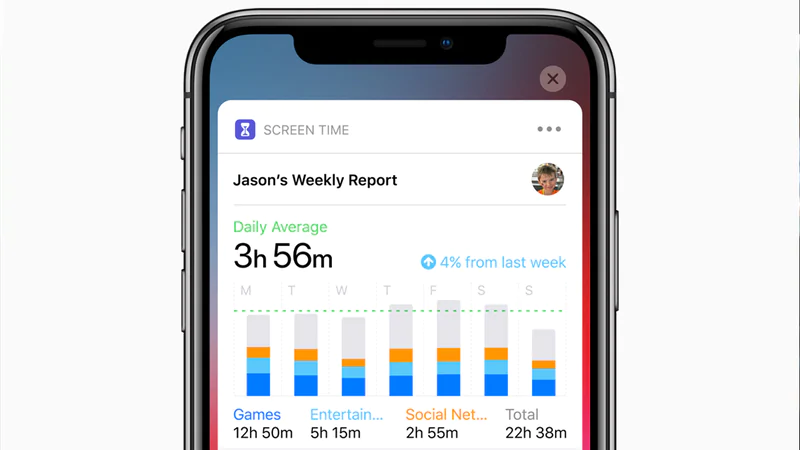
Differences in Screen Time Features by Android Brands
Depending on your phone manufacturer, the way you check screen time might look slightly different. Here’s how:
- Samsung: Settings → Digital Wellbeing → Screen Time.
- OnePlus: Settings → Digital Wellbeing & Parental Controls.
- Xiaomi (MIUI): Settings → Screen Time (direct option).
- Realme & Oppo: Settings → Digital Wellbeing → Dashboard.
- Vivo: Settings → Digital Wellbeing or Battery Usage.
Benefits of Knowing How to Check Screen Time on Android
When you regularly check your screen time, you enjoy several benefits:
- Time Management – Reduces procrastination.
- Better Health – Protects eyes and posture.
- Sleep Improvement – Avoids late-night phone use.
- Work-Life Balance – Helps you spend more quality time offline.
Common Problems While Checking Screen Time
Sometimes users face issues while trying to learn how to check screen time on Android. Here are solutions:
- Digital Wellbeing not available → Install ActionDash or StayFree.
- Battery usage not showing details → Restart your phone or update software.
- Reports not accurate → Ensure your phone is updated to the latest Android version.
Tips to Reduce Screen Time on Android
- Use Focus Mode – Block apps during work.
- Uninstall Unnecessary Apps – Reduce distractions.
- Turn Off Notifications – Avoid constant alerts.
- Use Grayscale Mode – Makes the screen less attractive.
- Set Daily Goals – Reward yourself for reducing screen time.
Understanding how to check screen time on Android is a must in today’s smartphone-driven world. Whether you use Digital Wellbeing, battery usage, third-party apps, or parental controls, tracking screen time helps you stay aware of your habits. Once you know your daily and weekly usage, you can set boundaries, improve productivity, and maintain a healthier balance between the online and offline world.
FAQs
Q1. Can I check screen time on any Android phone?
Yes, most Android phones support screen time tracking via Digital Wellbeing or battery usage.
Q2. Is Digital Wellbeing available on all devices?
No, some older models may not have it, but you can use third-party apps.
Q3. How to check screen time on Android without Digital Wellbeing?
You can use battery usage stats or download apps like StayFree.
Q4. Can I check weekly reports of screen time?
Yes, Digital Wellbeing and apps like ActionDash provide weekly reports.
Q5. How do parents monitor screen time for kids?
By using apps like Google Family Link or Qustodio.